Part 1: Open Register
Step 1: Open the App
Launch the Popcorn Cashier App on your device.
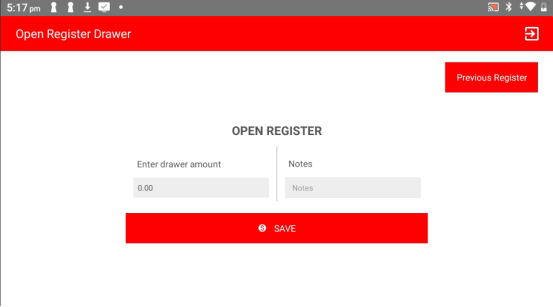
Step 2: Enter the Opening Amount
When prompted, enter the amount of cash in the register drawer at the start.
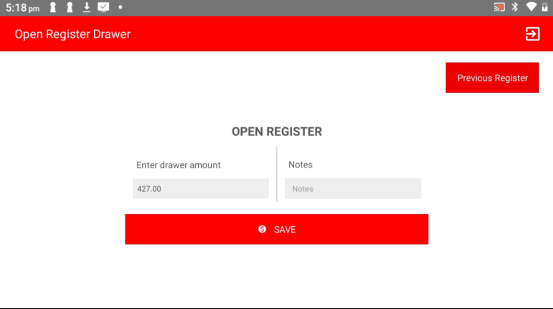
Step 3: Click Save
Tap Save to confirm the opening balance.
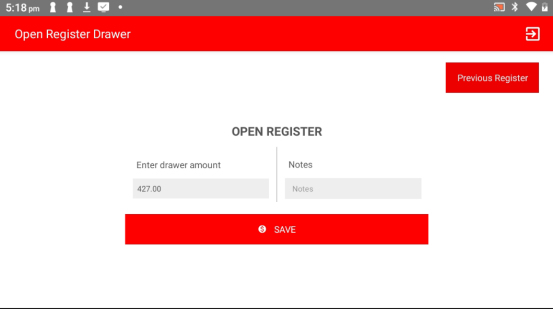
Step 4: Choose to Print or Not
You will be asked whether you want to print the opening register receipt. Select Yes or Skip as needed.

Part 2: Close Register
Step 5: Go to Main Menu
From the home screen or order screen, tap to return to the main menu.
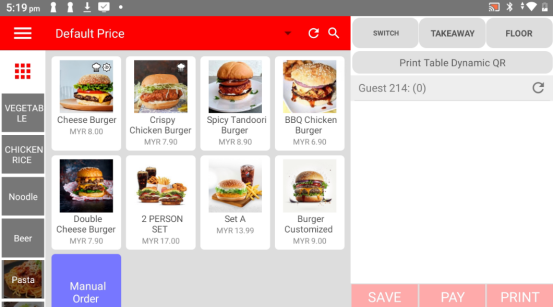
Step 6: Open the Sidebar Menu
Tap the menu icon (☰) or swipe from the left to open the sidebar.
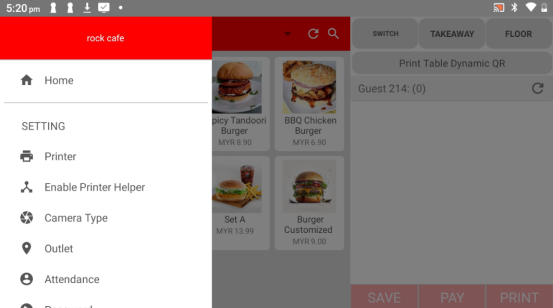
Step 7: Click "Register" under the Settings Category
Under the Settings section, select Register to manage register actions.
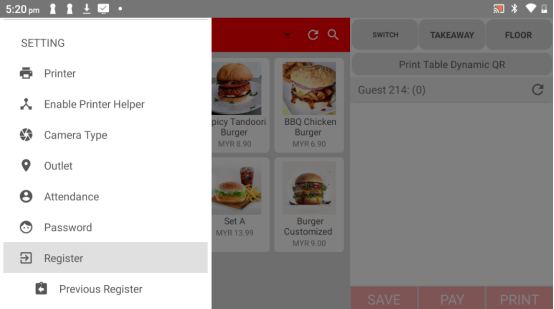
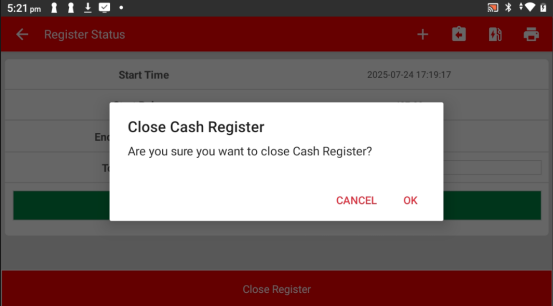
Step 8: Click "Close Register"
Tap the Close Register button to begin the closing process.
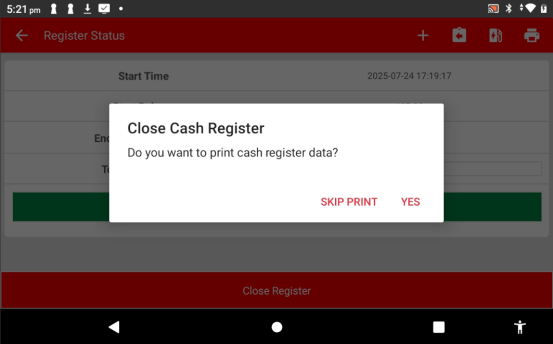
Step 9: Choose to Print or Skip
You’ll be given the option to print a closing receipt. Select YES to print or SKIP if you don’t need a printed copy.
Please click the link below to access the article:
https://drive.google.com/file/d/1nqjKAn7j00RmsCXyL5k8qXjSjtIxzkBT/view?usp=sharing
---------------------------------------------------------------------------------------------------------------------------------------------------------------------
Please refer to the video below for more information:
Was this article helpful?
That’s Great!
Thank you for your feedback
Sorry! We couldn't be helpful
Thank you for your feedback
Feedback sent
We appreciate your effort and will try to fix the article