Step 1: Open the App
Launch the Popcorn Cashier App from your device. Make sure you're logged in with the correct account.
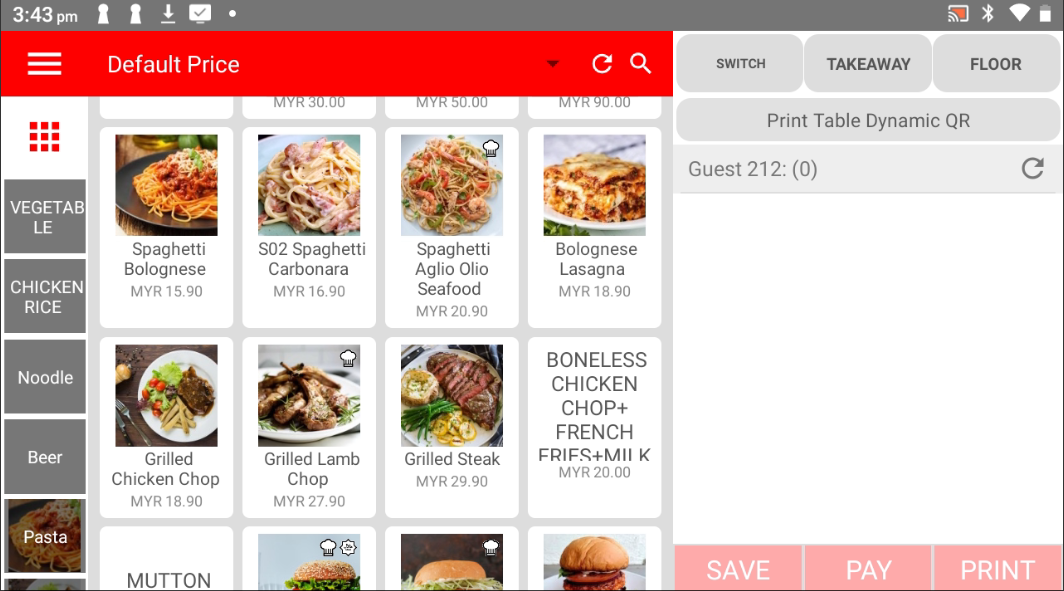
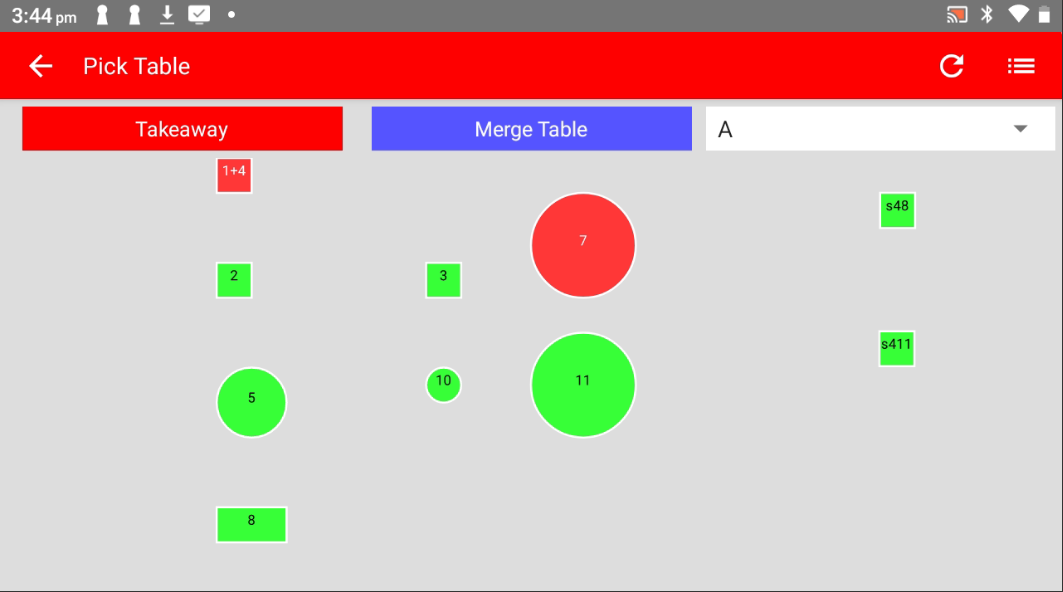
Step 2: Click "Floor" and Choose the Table
Tap the Floor button to view the layout. Select the table where the customer is seated.
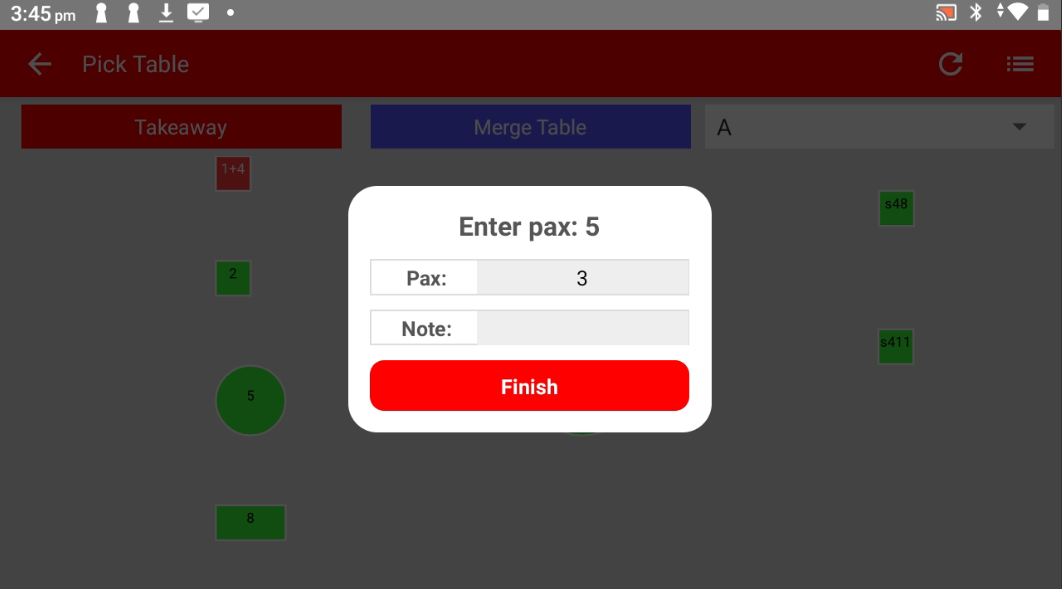
Step 3: Enter the Number of Pax
Input the number of pax (number of people at the table). This helps track table usage and order details.
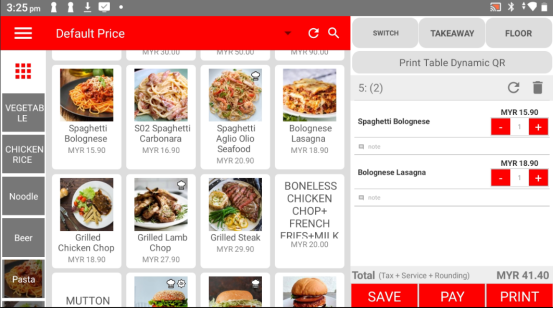
Step 4: Select the Food Items
Tap on the food items that the customer wants to order. You can select multiple items and adjust quantities if needed.
Step 5: Click "Save"
Once the order is complete, click the Save button. This saves the current order in the system and allows you to move on to the payment process.
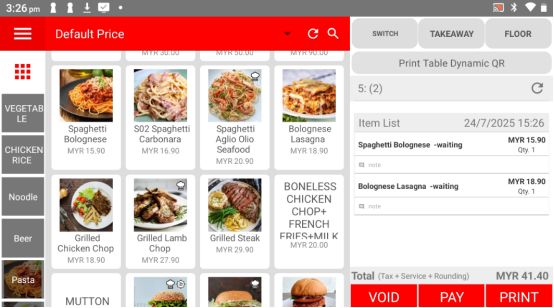
Step 6: Click "Pay" (If the Customer is Ready to Pay)
If the customer is ready to pay immediately, click the Pay button. If not, the order will remain saved and can be paid later.
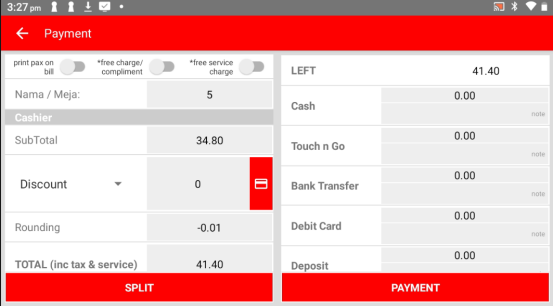
Step 7: Choose the Payment Method
Select the payment method the customer prefers (e.g., cash, card, Touch n Go, etc.).
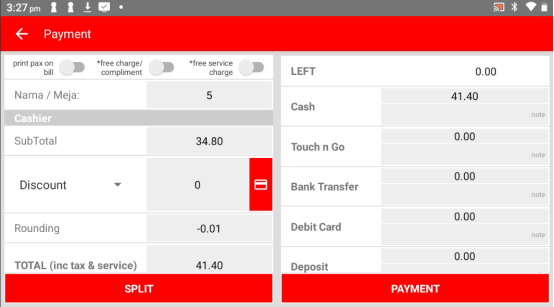
Step 8: Choose to Print the Receipt or Not
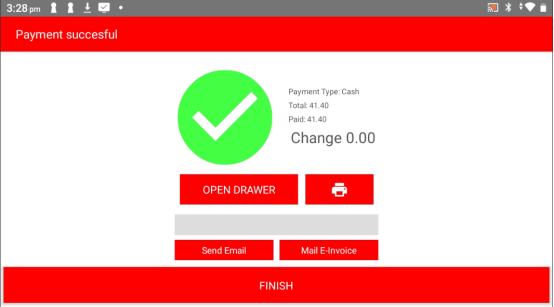
After completing the payment, the app will ask if you'd like to print a receipt. Choose Yes or No depending on the customer's preference.
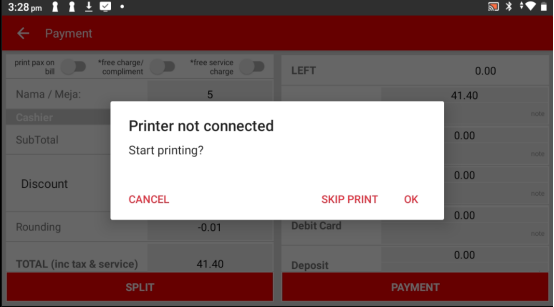
Step 9: Finish
That's it! The order is complete and recorded. You're ready to serve the next customer.
Please click the link below to access the article:
https://drive.google.com/file/d/19OAskCxGCCt-tiJzst4DHVEkt4vEk9iq/view?usp=sharing
---------------------------------------------------------------------------------------------------------------------------------------------------------------------
Please refer to the video below for more information:
Was this article helpful?
That’s Great!
Thank you for your feedback
Sorry! We couldn't be helpful
Thank you for your feedback
Feedback sent
We appreciate your effort and will try to fix the article