Step 1: Open the App
Launch the Popcorn Cashier App on your device. Make sure you're logged in with the correct account.
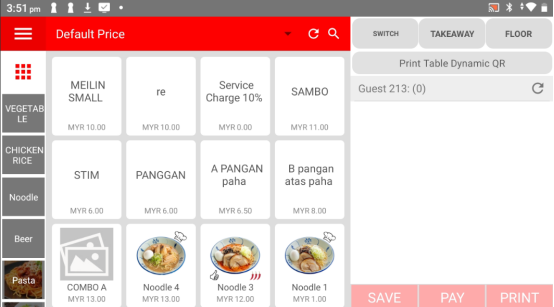
Step 2: Click "Takeaway"
On the main screen, tap the Takeaway button to start a new takeaway order.
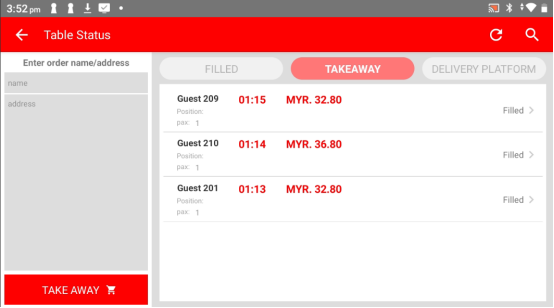
Step 3: Enter Customer Details
Fill in the customer's details, such as name and address. Then press Takeaway to continue.
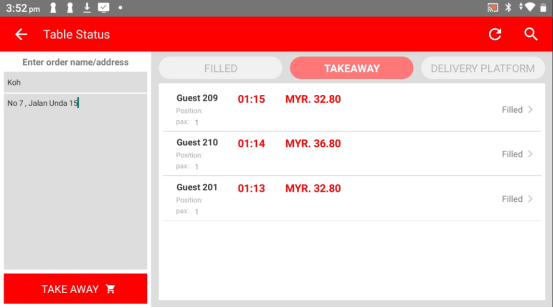
Step 4: Start the Order
Begin adding the food and drink items the customer wants to order. Tap to select each item and adjust quantities as needed.
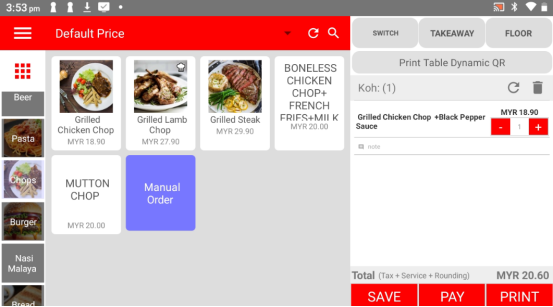
Step 5: Save the Order
Once all items are added, press the Save button to record the order in the system.
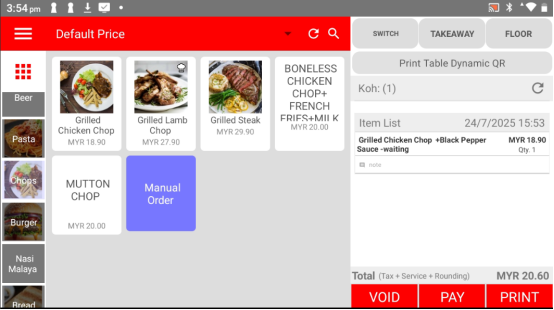
Step 6: Click 'Pay' (If the Customer is Ready)
If the customer is ready to pay, tap the Pay button to proceed.
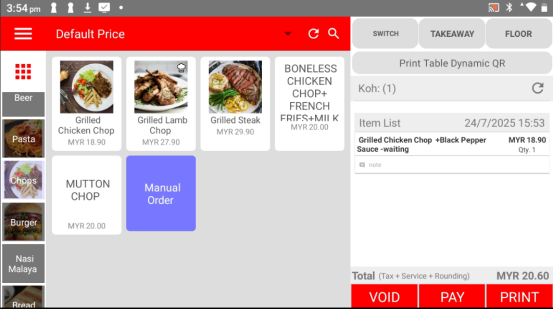
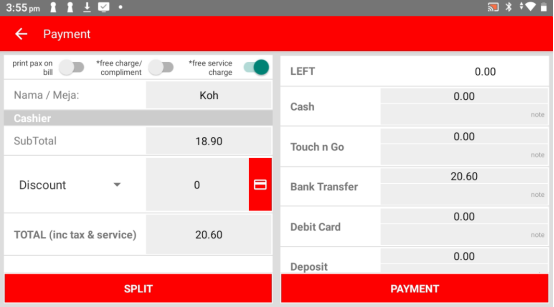
Step 7: Select the Payment Method
Choose the payment method the customer prefers—cash, card, e-wallet, etc.
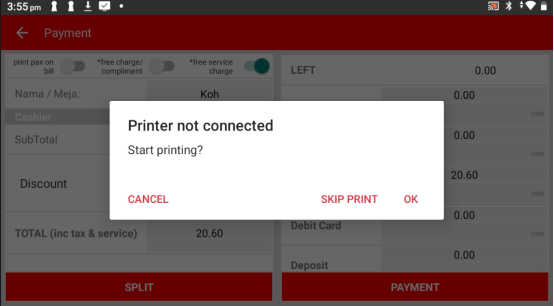
Step 8: Choose to Print the Receipt or Not
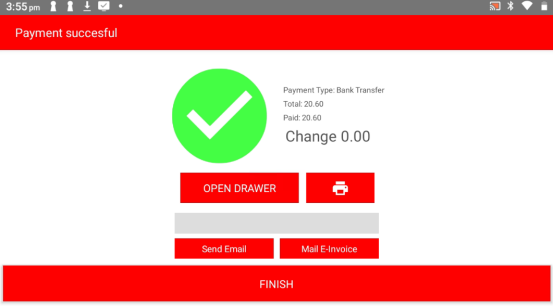
After completing the payment, the app will ask if you'd like to print a receipt. Select OK or Skip Print depending on the customer's request.
Step 9: Finish
That’s it! The takeaway order is now complete and ready for preparation or pickup.
Please click the link below to access the article:
https://drive.google.com/file/d/1-wyMDTgryEeVwzL5K3-fRbRtLm7H_1Qx/view?usp=sharing
---------------------------------------------------------------------------------------------------------------------------------------------------------------------
Please refer to the video below for more information:
Was this article helpful?
That’s Great!
Thank you for your feedback
Sorry! We couldn't be helpful
Thank you for your feedback
Feedback sent
We appreciate your effort and will try to fix the article