Step 1: Open the App
Launch the Popcorn Cashier App on your device.
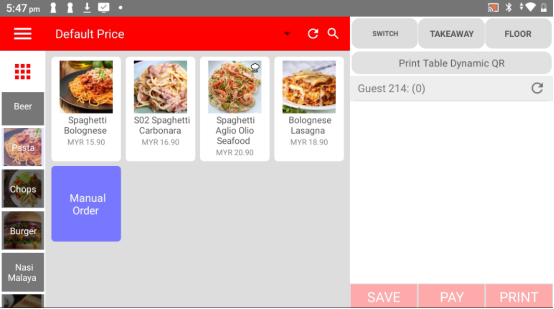
Step 2: Open the Sidebar
Tap the menu icon (☰) or swipe from the left to open the sidebar menu.
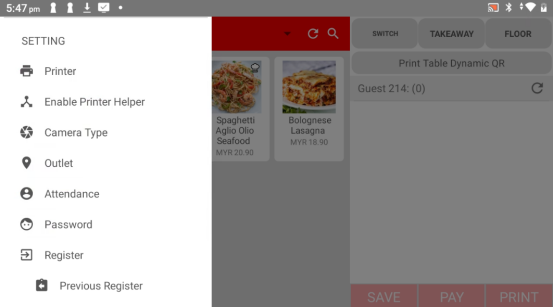
Step 3: Click “Printer”
In the sidebar, tap on Printer to manage your printer settings.
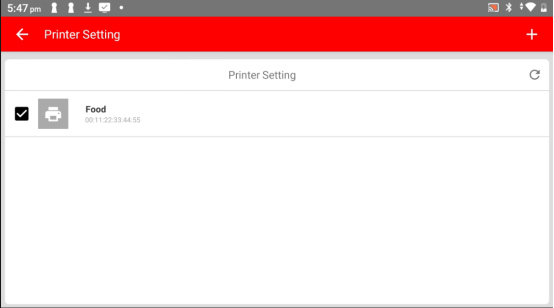
Step 4: Click the “Add” Button
Tap the Add (+) button in the top-right corner of the Printer screen.
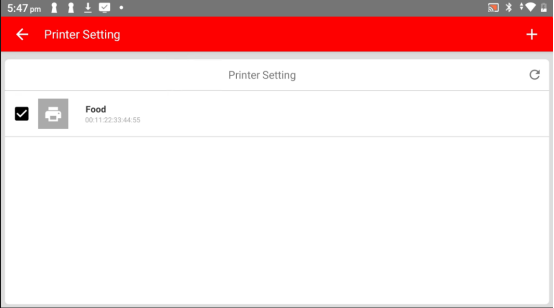
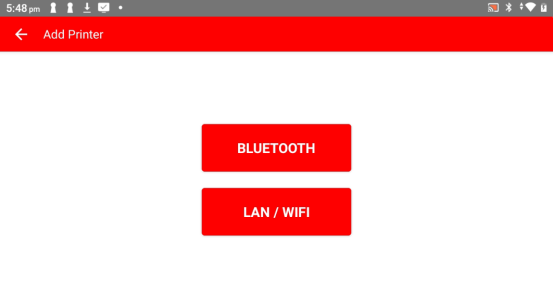
Step 5: Choose Your Printer Type
Select the type of printer you want to add:
Bluetooth
LAN/WiFi
Step 6: Enter Printer Details
Fill in the required details:
Name (e.g., “Kitchen Printer” or “Receipt Printer”)
IP address or Bluetooth device name, depending on type
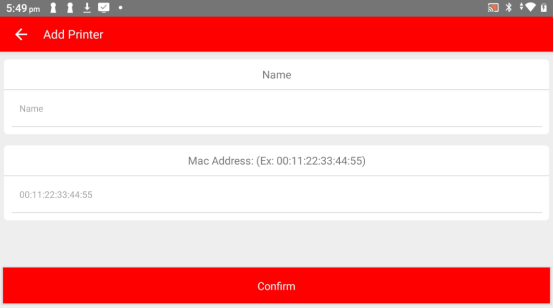
Step 7: Press “Confirm”
Tap Confirm to save the printer settings. Your printer will now be added and ready to use.
Please click the link below to access the article:
https://drive.google.com/file/d/1ZSuMA8Bs8jfjglr85upp9YEAnlsnuES5/view?usp=sharing
---------------------------------------------------------------------------------------------------------------------------------------------------------------------
Please refer to the video below for more information:
Was this article helpful?
That’s Great!
Thank you for your feedback
Sorry! We couldn't be helpful
Thank you for your feedback
Feedback sent
We appreciate your effort and will try to fix the article