Step 1: Open the App
Launch the Popcorn Cashier App on your device and ensure you’re logged in with the proper access level.
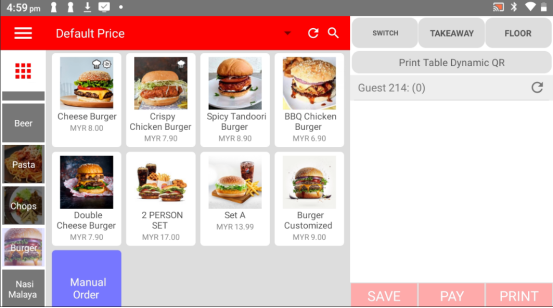
Step 2: Click the Sidebar
Tap the menu icon (☰) or swipe from the left to open the sidebar menu.
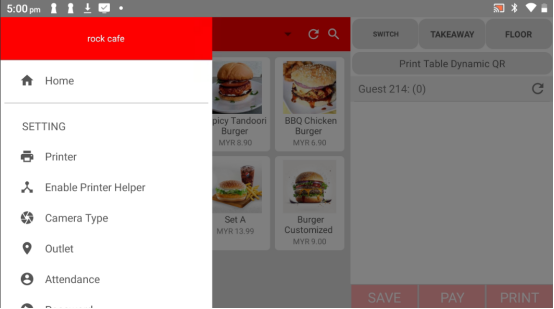
Step 3: Click "Procurement Expense" under the Data Category
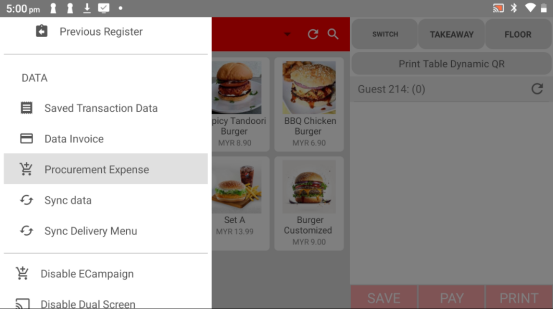
In the sidebar, scroll to find the Data section and select Procurement Expense.
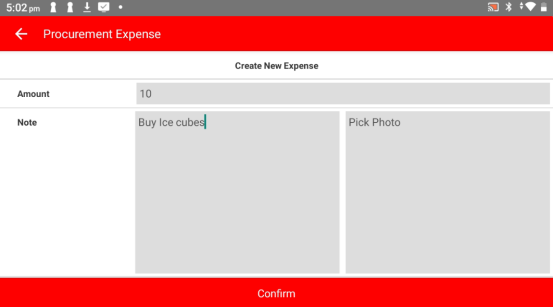
Step 4: Enter the Details
Fill in the required fields:
Amount – The total cost of the procurement
Note – A short description (e.g., "Buy Ice Cubes")
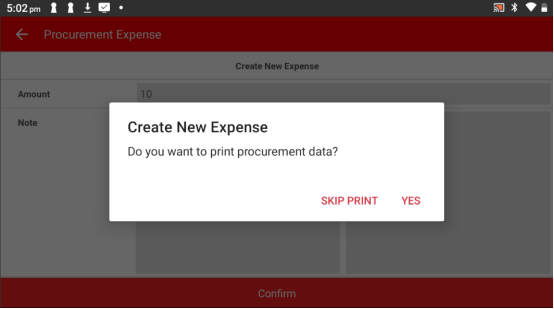
Step 5: Procurement Data Saved
Click YES or SKIP PRINT to record the expense in the system.
Please click the link below to access the article:
https://drive.google.com/file/d/188CJu2Ze7VE26aEom3sfQpRAWh9fVK2I/view?usp=sharing
---------------------------------------------------------------------------------------------------------------------------------------------------------------------
Please refer to the video below for more information:
Was this article helpful?
That’s Great!
Thank you for your feedback
Sorry! We couldn't be helpful
Thank you for your feedback
Feedback sent
We appreciate your effort and will try to fix the article