1. In your dashboard home page, scroll down to Transactions row and press Report.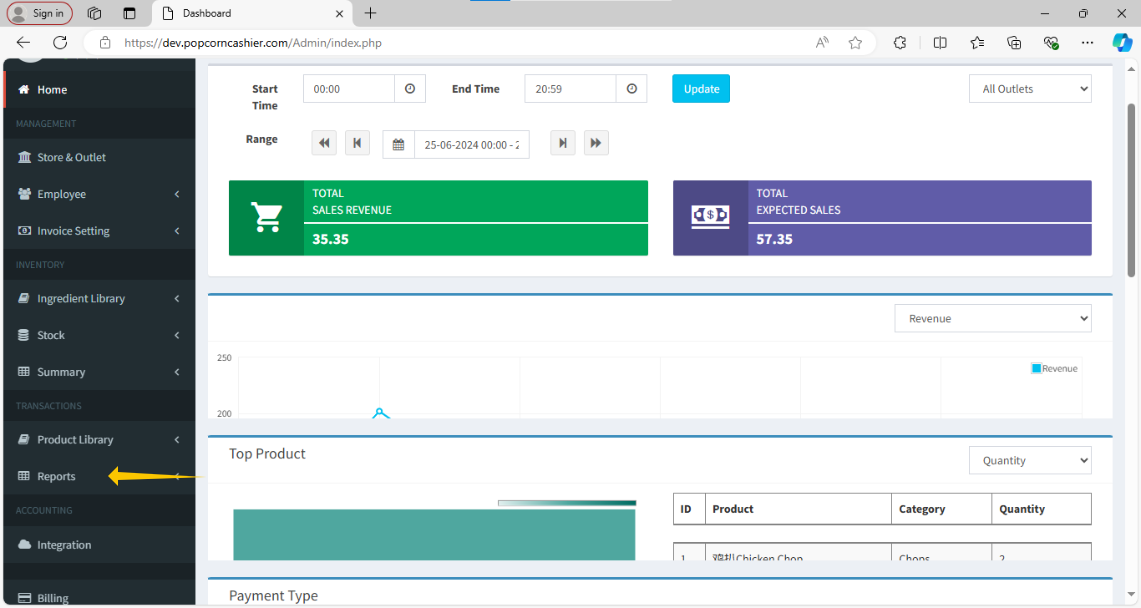
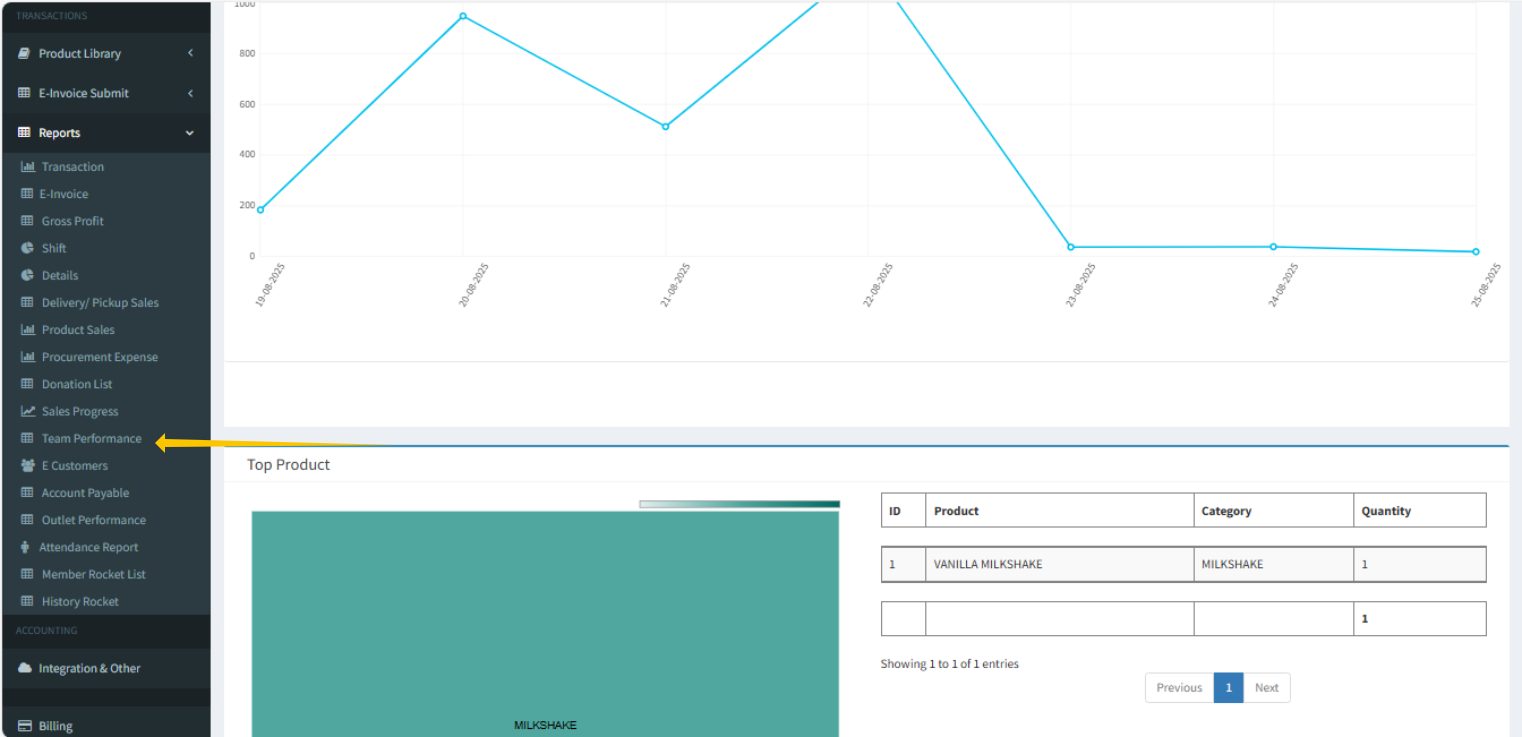
2. Then, click on Team Performance
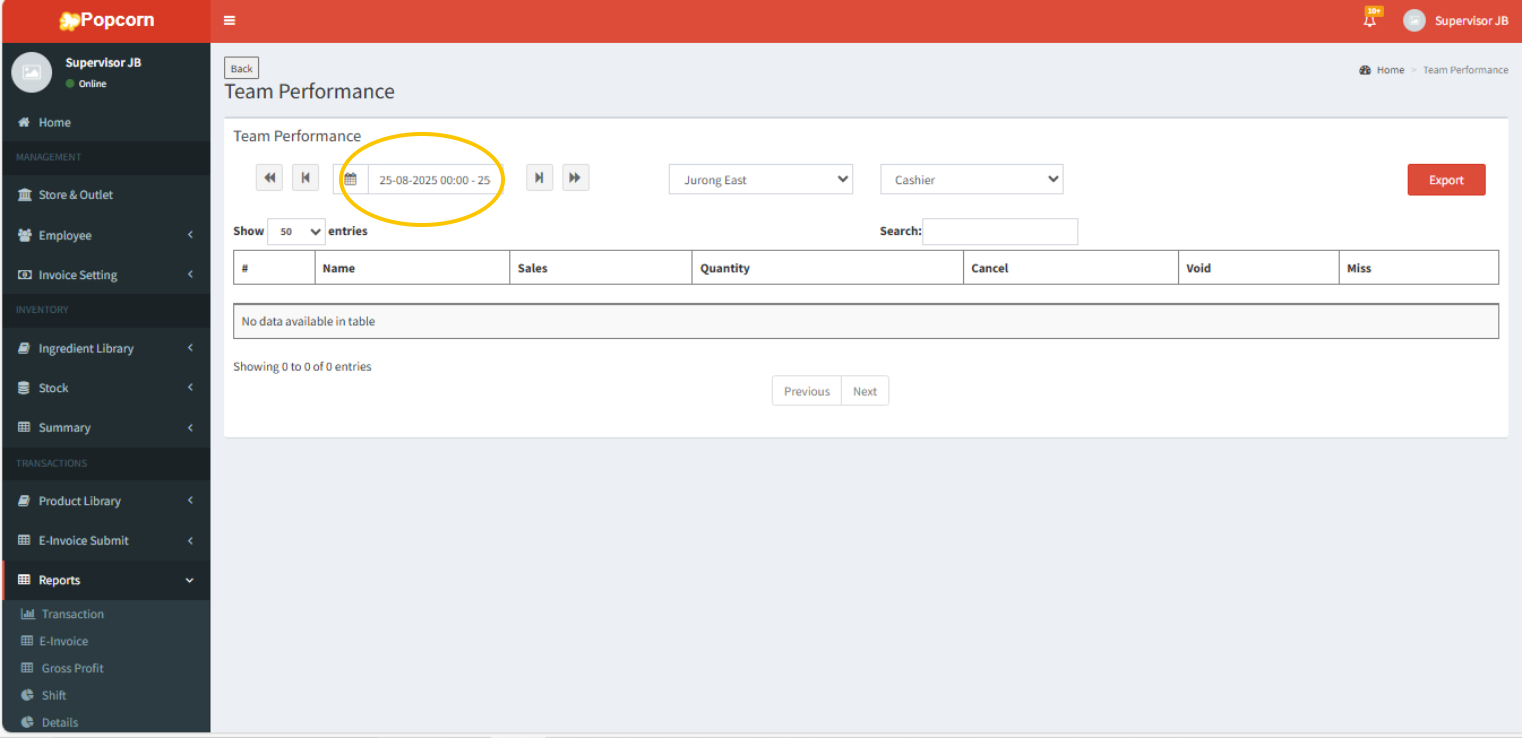
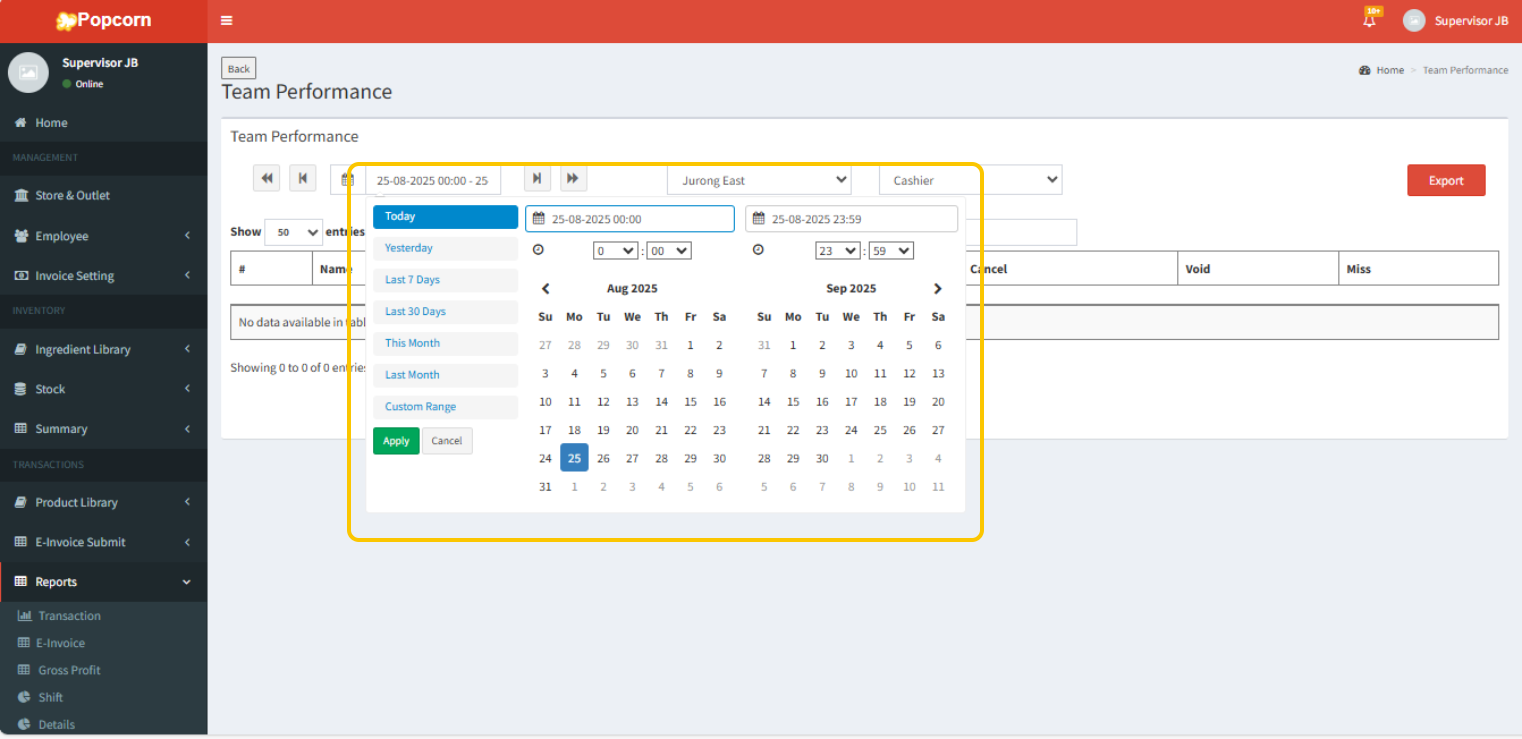
3. Click on the date option to choose the date for preview the order list.
4. You can choose any date to review or by week, and month.
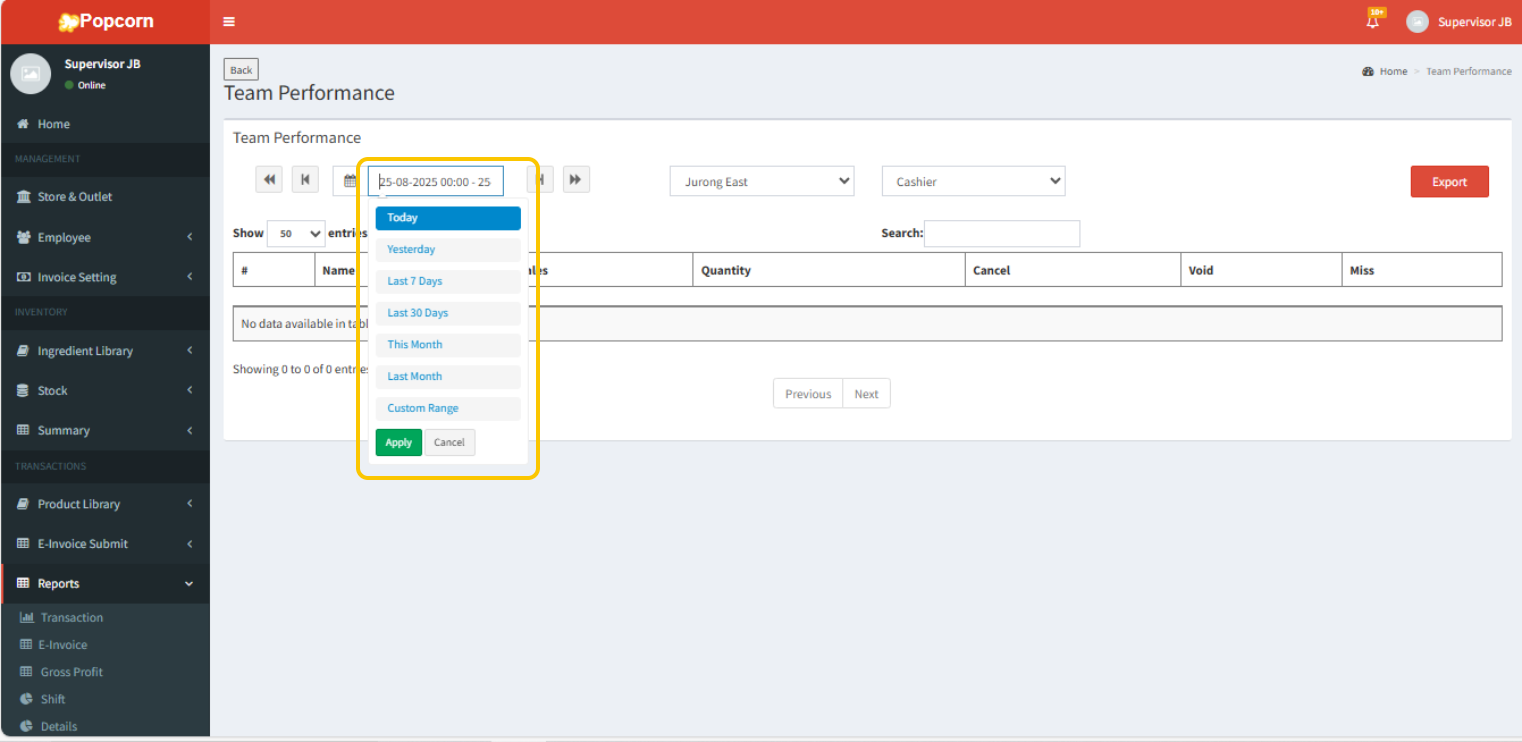
5. You can also select a custom range for date adjustment.
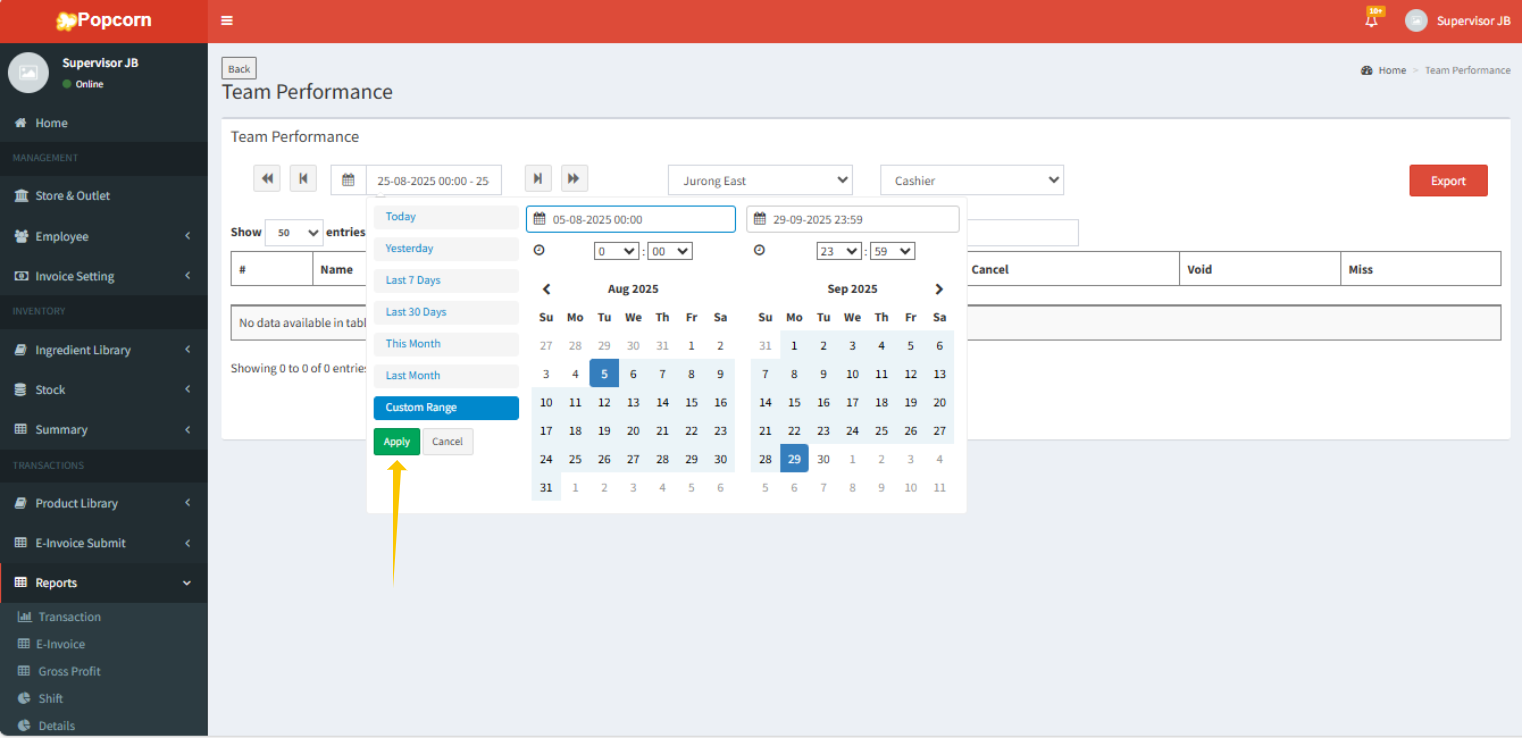
6. Pressing "Apply" to adjust to the selected date range.
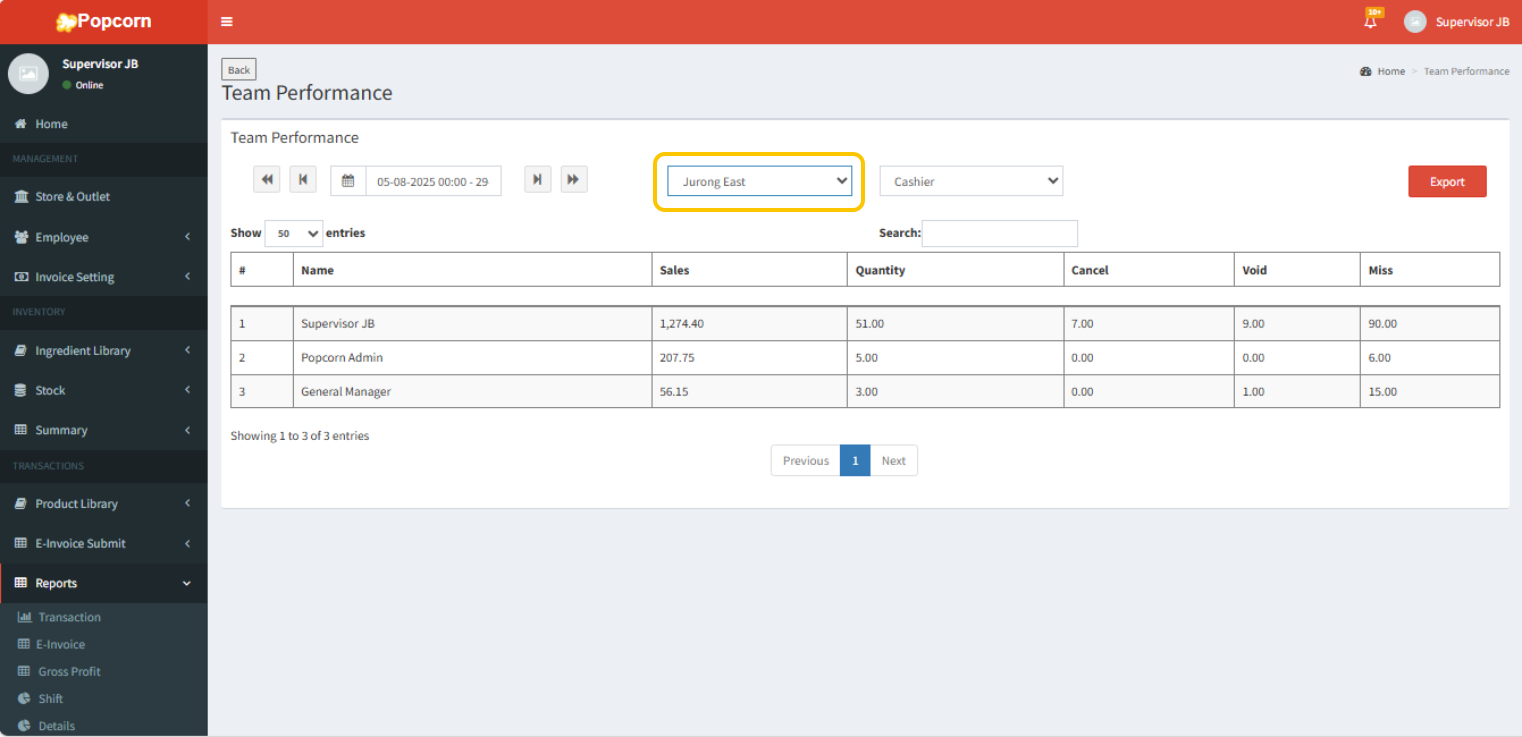
7. The options in the middle allow you to select the outlet for viewing reports.
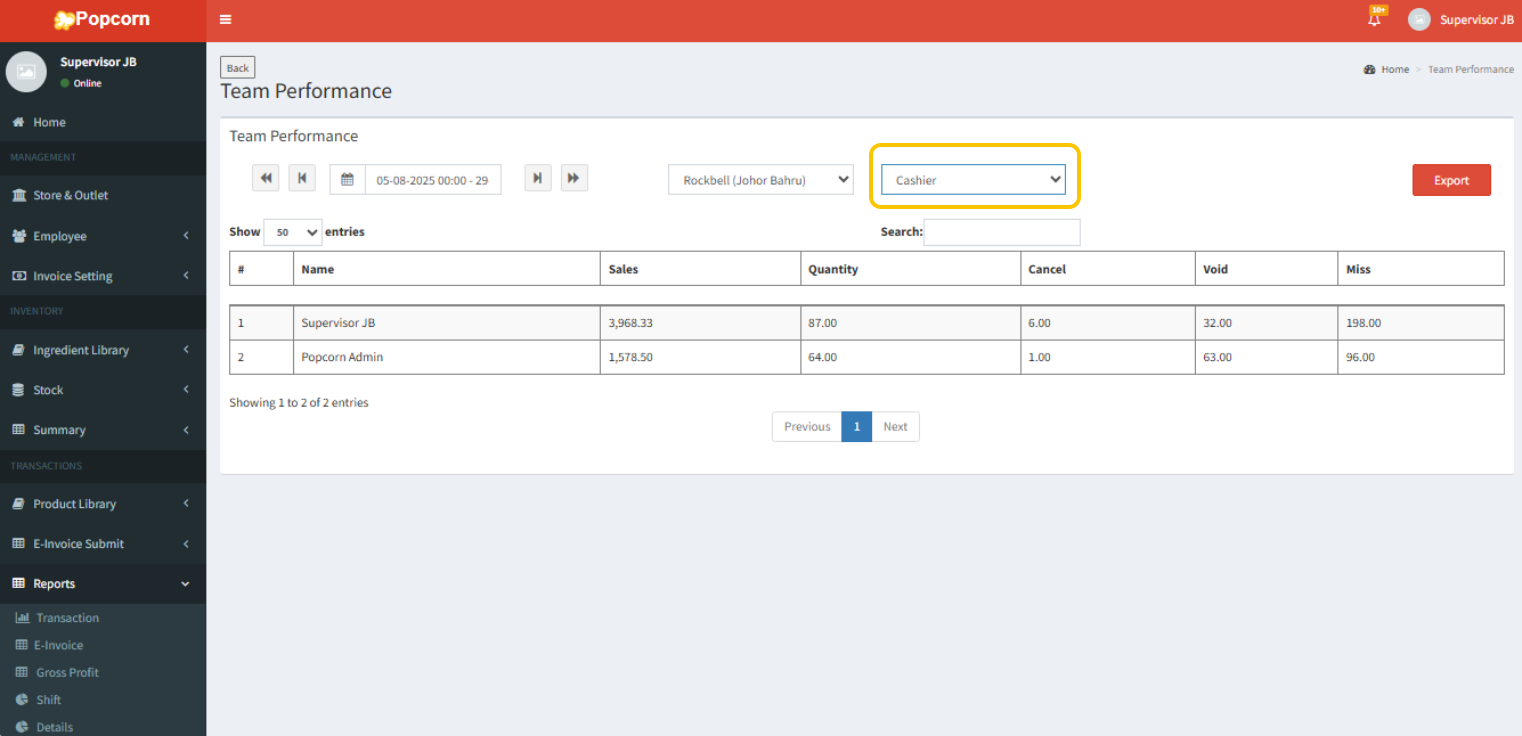
8. In the option on the far right, you can choose to view the contributions of employees as either waiters or cashiers.
9. After selecting all the options, you can export the report to Excel spreadsheet by clicking the red button at the right-hand side.
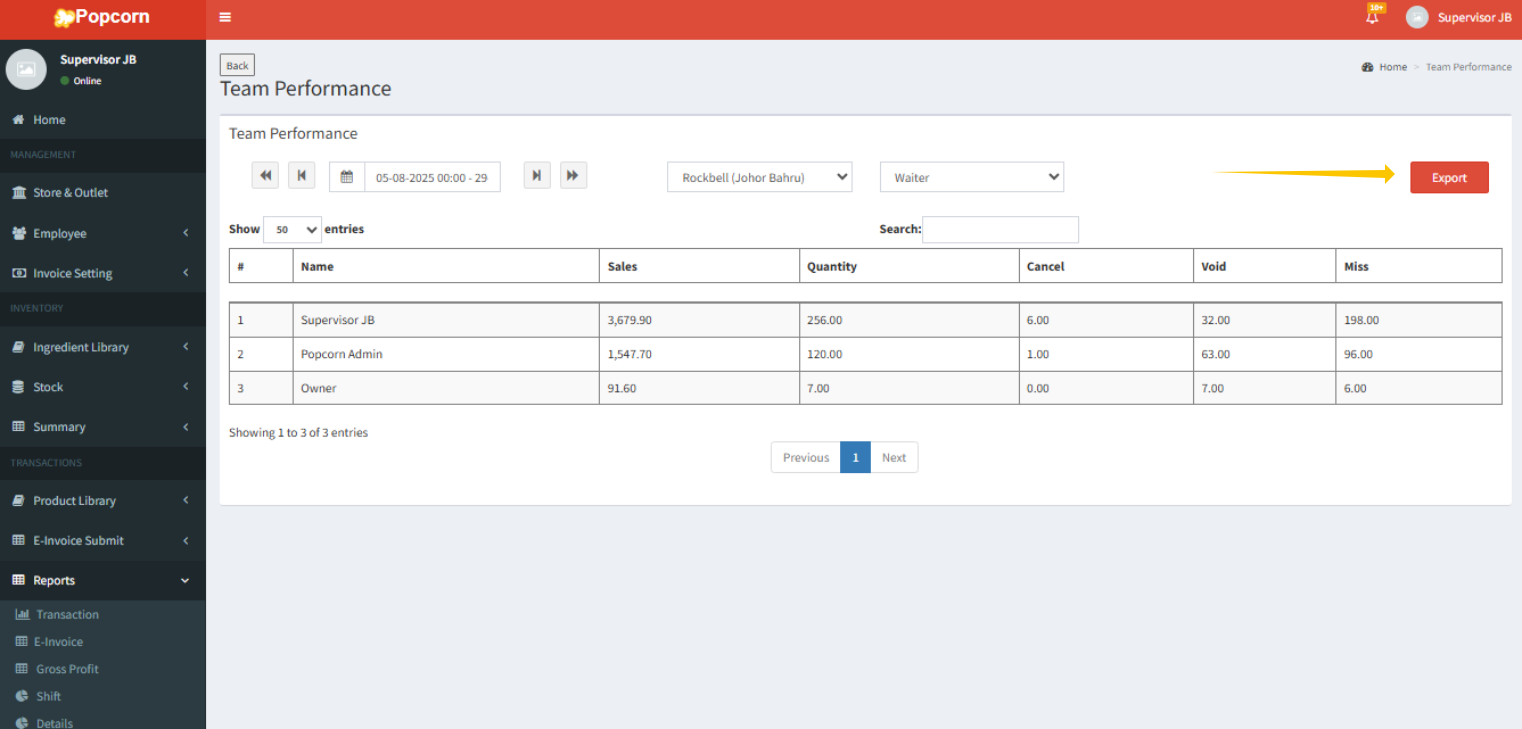
10. Then, click "OK, got it" to confirm the file export.
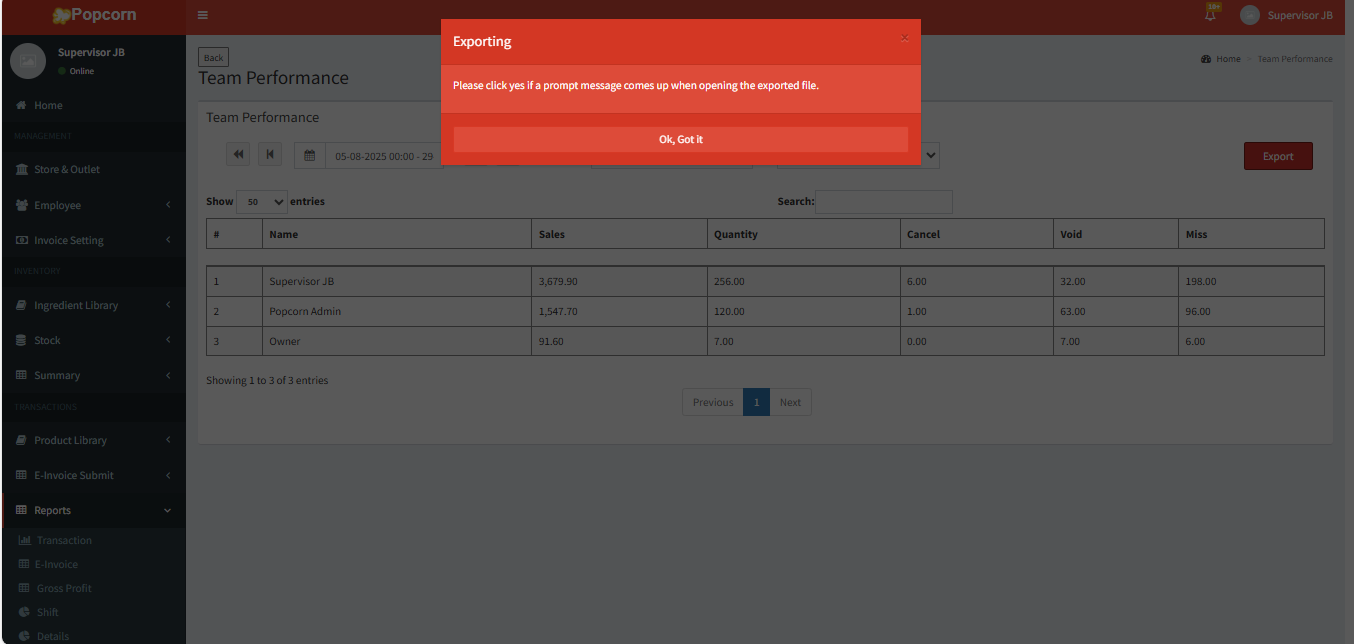
12. And your report will be downloaded. By open the file you will see that the report has been successfully exported.

Was this article helpful?
That’s Great!
Thank you for your feedback
Sorry! We couldn't be helpful
Thank you for your feedback
Feedback sent
We appreciate your effort and will try to fix the article